Momentum

Momentum

First time? Fill in all three and tap Create account. Already have one? Just email + password, then Sign in.

Forgot your password?
1.0.116

Momentum

Set a new password for your account.

1.0.116

All projects

New task

Stages — tap to pick (numbered in order)
Later stages only get scheduled after earlier ones finish — including how long each stage really takes in calendar days (⏳ shop queue, heat treat, anodize, test miles). Set that, and reorder, with the ✎ on a project.
The AI drafts the stages and tasks; you review and edit the plan before anything is added.
Tasks are scheduled inside these hours, on the days you tick. Changes are saved as you make them.
⤵ Import from Motion → Ibexx
✨ AI-generated plan — review before adding
⏳ Timeline reality-check
Add to calendar
Tasks are auto-scheduled around your meetings — this sets its deadline to the day you picked.
✉ Invite a teammate
Adds them to the team and emails a join link from your Outlook. They sign up with this email.
👤 Your account
Signed in as
🌓 Theme
Match device looks like the rest of your phone or computer. Dark or Light stays that way on every device you sign in on.
🔑 Change your password
Your password is stored scrambled and can't be shown anywhere — if you forget it, just set a new one here (no need to know the old one).
📅 Calendars you share with the team
Pick which of your Outlook calendars show on the shared team calendar. Unchecked ones stay private to you.
What teammates see on your events:
🛟 Reset a teammate's password
For someone locked out who can't sign in at all. Set a temporary password, tell it to them, and they change it here after logging in.
🎤 Ramble — dump it all, I'll sort it into tasks

Momentum

Open full Momentum →
📱 Get Momentum on your phone
✓ You're already using the installed app — you're all set.
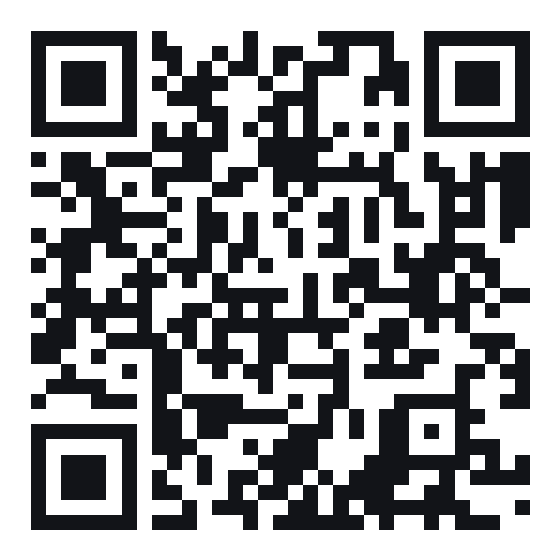
Scan to open Momentum
Point your phone camera here
or open this link on your phone:
momentum-production-a30b.up.railway.app

Then add it to your Home Screen:
iPhone (Safari): tap the Share button ⬆ at the bottom → scroll down → Add to Home Screen.
Android (Chrome): tap the ⋮ menu (top-right) → Add to Home screen / Install app.
It opens like a real app — same login, same team data. Once it's on your Home Screen, open it from there to turn on 🔔 notifications.
✨ A couple of quick questions first
Answer what you can — blanks are fine.
Enter
Restore a backup
The last saves kept on this device, newest first. Restoring replaces the current data and saves it for the whole team.
Run the weekly meeting
Creates this week's meeting deck and emails it to the whole team. It also confirms the cloud setup is working.
👥 Roles & permissions
📧 Import from Outlook — pick what comes in
🔒 AI usage by person — management
Figures cover this device until the shared/hosted version is live — then it's team-wide.
Message